Monday, 30 July 2018

How to Fix iPhone GPS Weak Signals


1. Reset Network Settings

There are times you will experience poor GPS signal causing the location service not to work properly. This is caused by a network connection issue. If your iPhone is experiencing such a problem you can reset your device’s network settings. The following steps will help you to rectify iPhone GPS not working in iOS 12.

Go to your device’s Settings then click on the General tab, tap on the Reset button then click Reset network setting. With this action you will be able to erase all your iPhone’s VPN and APN settings and Wi-Fi passwords.


2. Turn on and Turn Off Airplane

Once in a while your phone’s GPS may stop working or you may be having iOS 12 update failed with iTunes. In such a situation toggling the Airplane mode is a simple and fast way of fixing this issue. You may also experience Wi-Fi issues or get a ‘no service’ error on your phone. To fix this you just need to turn the Airplane mode on and off.

Go to your phone Settings then enable the Airplane mode. Let it stay on for 20 minutes then turn it off. This will fix any iOS issues you may have on your iPhone.


3. Disable and Enable Location Services

Your iPhone’s Location services are turned on if you do not get a lock on your GPS signal or if you do not receive a massage indicating ‘Accurate location unavailable’. You will need to verify if the Location services are on because there are cases of it being off when it indicates it is on.

Go to your iPhone Settings, click on Privacy then select Location services. Check for the Runkeeper app and make sure the Location services are On. To make sure it is enabled, turn it Off then On again.


4. Reset Location & Privacy

If your iPhone is having persistent GPS problems like iPhone weak GPS signal, you can try resetting the Location & privacy settings on your iPhone. This is a simple way of fixing your iPhone’s GPS issues.

You need to go to your iPhone’s Settings and click on the General tab then select Reset. Scroll down to the Reset Location & privacy tab. You will then need to enter a passcode or not then click Reset settings to confirm what you have just done. Point to note is that all your apps will need to be granted permission to use the location feature after the reset.


5. Drain the iPhone Battery

This method may work for some iPhone users for some time but the GPS problems still come back. All you need to do is completely drain your phone’s battery then recharge it with the original wall charger.

After you have completely charged your iPhone, check if the phone’s GPS features are working again. This is a temporary solution to your problem because it returns after some time.


Sponsor Ads:

Gihosoft Free iPhone Data Recovery is a professional iPhone Data Recovery software to get back all your lost text message, photo, video, call history, note, contact and more from iPhone/iPad/iPod Touch. It offers a full solution to recover your lost data in different tough situations. Besides recovering data directly from iPhone, iPad and iPod touch, it also allows you to recover data from iCloud and iTunes backup files.

iPhone backup unlocker:Recover iTunes Backup Password.

iPhone backup extractor free:The best iPhone Backup Extractor software to extract photos, text messages, contacts, voice memos, note, WhatsApp, Viber and etc from iPhone/iPad backup.



Wednesday, 25 July 2018

How to fix iPhone Battery Draining Fast All of a Sudden After iOS 12 Update?


How to fix iPhone Battery Draining Fast All of a Sudden After iOS 12 Update?

iPhone Battery Draining Fast All of a Sudden After iOS 12 Update?

1. Check the Apps Which Are Consuming the Most Power

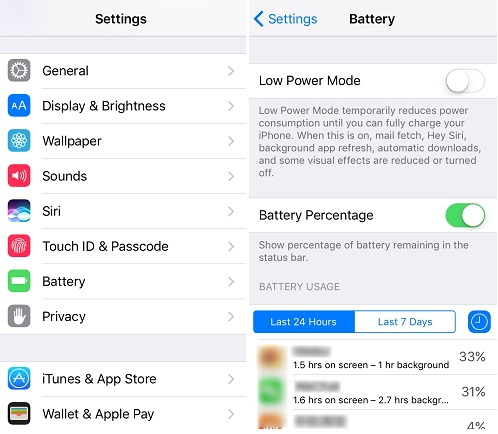
When you observe iPhone battery draining fast all of a sudden after iOS 12 update, you need to examine all the apps and check which are eating up the batter most. To do this, open 'Settings' and tap on 'Battery'. Under the 'BATTERY USAGE' option, you could see the apps and the figures given next to each app shows how much battery is consuming by the app. Switch to 'Last 24 Hours' to see how much battery is consumed during the previous day. On finding the battery consuming apps, delete those or you can simply ask the app developer about the issue.


2. Update Apps on Your iPhone

The apps that are not updated, at times stand considerable for sudden iPhone battery dropping. This is because, on an available app update, the apps might try to get automatically updated in the background and hence this could result in draining battery. In addition, an outdated app will work improperly and lead to sudden draining of power. Therefore, just open 'App Store' in your device and tap on 'Update All' at the top to update your apps.


3. Close All the Apps in Background When Not in Use

You probably have no idea about closing the apps once you use it. For your information, the apps you use run in the background even after you exit those and because they're still running in the background, they could be responsible of a sudden draining of iPhone battery. Hence to improve battery life, we recommend you to close those apps so that the battery doesn't rapidly drops any longer.

Hit on the 'Home' button twice and let the app switcher on. You could notice how many apps are opened that you used recently. Swipe up the apps one by one and close them.


4. Use iTunes to Restore iPhone to Factory Settings

Restoring the device to factory settings is also helpful. If you're facing a circumstance where your iPhone battery suddenly drops after updating to iOS 12, try to restore your iPhone. However, this will lead to data loss. So try this method if you're comfortable with it.


Open the latest iTunes version and get your iPhone connected to the PC via USB cable.


After opening, click on device icon and then hit 'Summary'.


Now, click on 'Restore iPhone' and confirm the actions. Wait for a few munites, and then your iPhone will restart and be back to normal.


5. Replace the Battery

If nothing worked out for you what is mentioned above and your battery is still draining fast all of a sudden in iOS 12, we would like to suggest you to replace the battery. It would be a fair decision for such battery draining case and when any of the above methods is working for you.


6. Tip: How to Save Battery on iPhone

After learning the solutions to try when iPhone battery suddenly drops after iOS 12 update, here are the tips you should know if your wish to save battery on iPhone.


Firstly, note to keep the 'Background App Refresh' option disabled. You can find it in the 'General' menu from 'Settings'. The feature, if enabled can lead to reduced battery life by keeping the device active and running things in background.


You need to check software updates time and again since every new update brings fixes with it thereby possibly improving the battery life.


The next tip says and suggests you to turn off the location services. Go to 'Settings' > 'Privacy' > 'Location Services' and disable it by toggling the switch off. Tap 'Turn Off' from pop-up to confirm. Keeping this feature constantly enabled uses GPS which will surely affect the battery life.If you lost videos from iOS Camerall Roll which are nowhere to download again, you can use Gihosoft iPhone Data Recovery to get back deleted videos from iOS device including iPhone, iPad and iPod Touch.


Jihosoft iPhone Backup Extractor Extract and recover all types of data from iPhone backup files, such as camera roll photos, videos, SMS, contacts, reminders, WhatsApp, and etc.


Gihosoft Android data recovery Free is a super awesome software specialized in Android file recovery. With this program, you are able to recover deleted photos, music, videos, messages, contacts, call logs, WhatsApp messages, Viber chat history and more from Samsung, Huawei, LG, HTC, Motorola, Google, Oneplus, Sony, Lenovo, ZTE and other Android devices directly. Meanwhile, this Android data recovery software is available for both Windows and Mac platforms.


ICCID BUG BYPASSES IPHONE’S ACTIVATION LOCK


ICCID BUG BYPASSES IPHONE’S ACTIVATION LOCK


ICCID BUG BYPASSES IPHONE’S ACTIVATION LOCK

A new SAM-style activation bug allows you to factory unlock any iPhone model with a third-party SIM. Egyptian Twitter user “iCloudlocate” was the first to discover this method.
This bug relies on a special SIM card called Turbo SIM. All you need to do is insert the Turbo SIM and change its ICCID or SIM number to “89014104277806043133” and your iPhone will get factory-unlocked.
iPhone unlock
For the uninitiated, unlocking is useful if you have a bad ESN device, a smartphone that is blacklisted and can’t be activated. Furthermore, unlocking and bypassing the activation lock is essential if you purchased a carrier-locked iPhone.
As of right now, users have successfully bypassed the activation screen and unlocked the following models. But before you jump on the unlock bandwagon, ensure that you have the necessary supplies in store.

WHICH IPHONE MODELS ARE FACTORY-UNLOCKABLE?

  • iPhone 5s
  • iPhone 6
  • iPhone 6 plus
  • iPhone 6s
  • iPhone 6s plus
  • iPhone SE
  • iPhone 7
  • iPhone 7 plus
  • iPhone 8
  • iPhone 8 plus
  • iPhone X

HOW TO FACTORY UNLOCK YOUR IPHONE

1. INSERT A TURBO SIM CARD

  • Purchase an RSIM 12 from eBay or Amazon. Sellers on eBay are comparatively cheaper than those on Amazon so we recommend going for eBay. Alternatively, you can purchase any other interposer SIM card like Turbo, Gevey, or GPP. Ensure the SIM card you purchase lets you change the ICCID or SIM number.
  • Once you get your hands on the SIM card, insert RSIM 12 with your SIM card to the SIM tray. If you are having trouble inserting RSIM, watch this video.
  • Wait for your smartphone to display the activation popup.

2. EDIT YOUR ICCID/SIM NUMBER

  • Tap Dismiss and press the home button once.
  • Use the emergency call option and dial *5005*7672*99#.
  • Tap Edit ECID and type in 8901-4104-2778-0604-3133.

3. EJECT THE TURBO SIM

  • Restart your device and set it up.
  • Once you are on the home screen, eject your carrier’s SIM card and remove the interposer card.
  • Insert your SIM card again. That’s pretty much it! Your smartphone is factory unlocked and you can insert any carrier SIM without activation locks.

4. MAINTENANCE

  • Remember, a hard reset and a clean restore will remove the unlock. The unlock will remain functional if you update your phone via OTA or iTunes.
  • Do not hard reset your iPhone or perform a full restore with iTunes unless you want to remove the unlock.

WHEN WILL APPLE PATCH THIS BUG?

As you already know, Apple doesn’t take kindly to leaks and bypasses. Since this bug is available publicly, Apple will roll out a patch within a few hours from now.
If you have a bad ESN Apple smartphone, go ahead and unlock it before Apple closes this loophole.
If you lost videos from iOS Camerall Roll which are nowhere to download again, you can use Gihosoft iPhone Data Recovery to get back deleted videos from iOS device including iPhone, iPad and iPod Touch.
Jihosoft iPhone Backup Extractor Extract and recover all types of data from iPhone backup files, such as camera roll photos, videos, SMS, contacts, reminders, WhatsApp, and etc.
Gihosoft Android data recovery Free is a super awesome software specialized in Android file recovery. With this program, you are able to recover deleted photos, music, videos, messages, contacts, call logs, WhatsApp messages, Viber chat history and more from Samsung, Huawei, LG, HTC, Motorola, Google, Oneplus, Sony, Lenovo, ZTE and other Android devices directly. Meanwhile, this Android data recovery software is available for both Windows and Mac platforms.


Monday, 23 July 2018

How to Delete Cookies on iPhone -simple ways to clear Cookies on iPhone

How to Delete Cookies on iPhone -simple ways to clear Cookies on iPhone
Here's how to delete your history, cache and cookies and browse Safari privately on your iPhone, iPad or iPod Touch.
First of all a cookie is a small piece of data sent from a website and stored in your iphones browser. This can be login and password records from sites that you visit quite often. One of the biggest reasons and benefits to deleting cookies on your iphone would be to get rid of these passwords on the sites you’ve been visiting if you no longer want them saved.
Now let us look into how to delete Cookies on iPhone. It is actually not a big thing to clear cookies on iPhone. However, that will log you out of every single website that you were previously logged into, and wipe any other cookie-based preferences. Below are some of the ways on how to delete cookies on iPhone / iPad.

1. How to delete Cookies on iPhone for Safari
When you visit a website on your iOS device your Safari browser by default retains browser history and cookies so that it can easily access that website when you visit the page next time. However, accumulation of these data over time causes to occupy considerable memory space and tends to slow down your iPhone. Sometimes the Safari browser on your iPhone may also misbehave due to storing of these cookies. The only solution to fix the problem is to clear cookies safari. The process is simple.
Step1: Go to Settings on your iPhone;
Step2: Scroll down the page to ‘Safari’ and click on it;
Step3: Go down and find ‘Clear History and Website Data’ option at the bottom of the screen and tap on the option;


Step4: All the Safari cookies will get cleared on your iPhone;

2. How to delete Cookies on iPhone for specific websites


Follow the steps below to easily clear cookies on iPhone for a specific website.
1. Go to setting app on your iPhone;


2. Scroll down the page to ‘Safari’ and click on it;


3. Then scroll down until you see the ‘Advanced’ option on the right-hand side and click on it;


4. Now press the ‘Website Data’ button to see a list of websites that have put cookies on your device;


5. Tap ‘Edit’at the top right of the screen;


6. ‘Red minus’ icon will appear beside each of the websites. Tap on the red minus icon for the specific website whose cookies you want to delete and then tap ‘Delete’;


7. All the unnecessary cookies of the specific website will get deleted on your iPhone;
If you lost videos from iOS Camerall Roll which are nowhere to download again, you can use Gihosoft iPhone Data Recovery to get back deleted videos from iOS device including iPhone, iPad and iPod Touch.
Jihosoft iPhone Backup Extractor Extract and recover all types of data from iPhone backup files, such as camera roll photos, videos, SMS, contacts, reminders, WhatsApp, and etc.

Monday, 16 July 2018

Apple seeds macOS 10.14 Mojave Beta 4 with 2018 MacBook Pro support 2018


WHAT’S NEW IN MACOS MOJAVE BETA 4?

macOS Mojave Developer Beta 4 brings support for the latest MacBook Pro (2018). Moreover, it also fixes a bug present in the new models.

On the 2018 MacBook Pro, adjusting the screen brightness settings didn’t take effect. This new version fixes that.


The fourth build comes two weeks after the release of the third beta and more than a month after the launch of the operating system at the Worldwide Developers Conference 2018.

Actually, this is the fifth beta build since Apple made a silent update last week.

The firmware released today has a build number 18A336e and weighs 2.86GB. It is available for download on the Apple Developer Center. If you possess the appropriate OTA profile, you can download Mojave Beta 4 right away.

Alternatively, you can grab the OTA profile below without a developer account for free.
DOWNLOAD MACOS MOJAVE BETA 4


OTA Profile
SHOULD YOU UPDATE?

Yes, you should definitely update your MacBook if you happen to own the latest models.

For those of you who own older models, you can safely give this version a miss. The reason being is that Beta 4 focuses primarily on the 2018 MacBook laptops and doesn’t have much to offer for older models.

Check out our Facebook and Twitter pages for more Mac releases and updates.Gihosoft Free iPhone Data Recovery is a professional iPhone Data Recovery software to get back all your lost text message, photo, video, call history, note, contact and more from iPhone/iPad/iPod Touch. It offers a full solution to recover your lost data in different tough situations. Besides recovering data directly from iPhone, iPad and iPod touch, it also allows you to recover data from iCloud and iTunes backup files.


Sunday, 15 July 2018

Stuck On “iTunes Is Downloading the Software for This iPhone”?


Stuck On “iTunes Is Downloading the Software for This iPhone”?


1. iTunes Is Downloading the Software for This iPhone? How Long Does It Take?


Actually there is no particular time limit on how long it will take for iTunes to download the firmware. It varies from people to people, depending on how soon your iDevice connects with the Apple server to download the software. Roughly 'iOS Download and Update' usually takes almost 30 minutes. If everything goes fine then your device might run smoothly in no more than 1 hour.


If you find iTunes is stuck on "iTunes Is Downloading the Software for This iPhone" for hours, you may quit iTunes and restart to try again.
2. If Your iPhone Is in Normal Mode Before That


If your iPhone works normally before iTunes is stuck on downloading the software for this iPhone, you can try do something for both your iTunes and iPhone to avoid the problem.


Here in this section, we've brought to you quite effective solutions that you can perform to fix the iTunes stuck issue.
2.1. Update iTunes


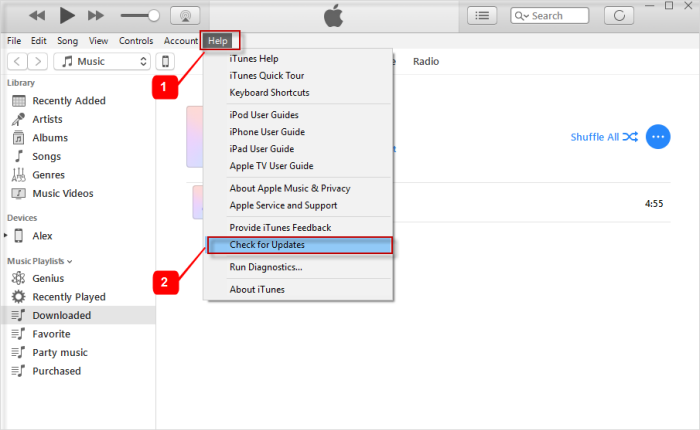
First of all, make sure you have the latest iTunes installed. To update iTunes on Windows version, you can just click "Help" in the Menu, and then click "Check for Updates". Follow the instruction to install the latest version of your iTunes.


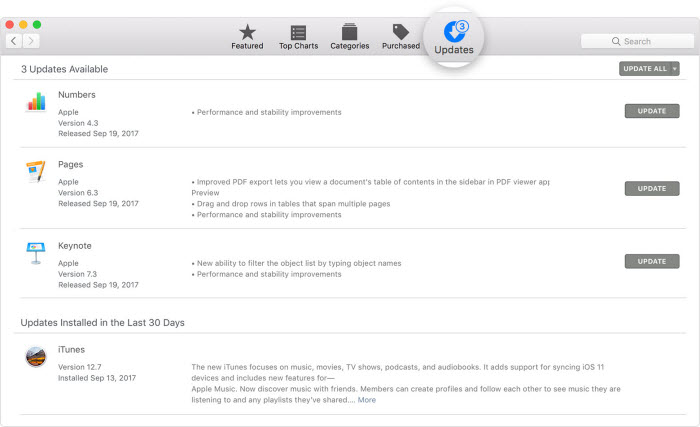
If you are using a Mac, you can just go the the App store and check if there is update for iTunes. Click "UPDATE" if there is the option.


2.2. Hard Reset iPhone


Try performing hard reset on your iPhone as the first method to fix the issue as it has been proved effective for fixing iOS glitches. Follow the steps provided carefully:


iPhone 6 or Older Devices


Hold down the 'Sleep/Wake' button simultaneously with 'Home' button till you see the phone screen turn black. As soon as the Apple logo starts appearing, let go of the buttons.


iPhone 7/7 Plus


Press and hole the 'Sleep/Wake' and 'Volume Down' button together until the Apple logo appears. Leave them once after that.


iPhone 8/8 Plus/iPhone X


First quickly push the 'Volume Up' key and release quickly, repeat the same with the 'Volume Down' key. Press the 'Sleep/Wake' button till the Apple logo appears on the screen.
2.3. Reset all Settings


To reset all settings in your iPhone, you don't have to be a tech-geek. Knowing some simple steps will ease your burden and help you deal with the problem that iTunes is stuck on downloading the software for this iPhone. Here are the steps –


From your iPhone home screen, go to 'Settings' and then click 'General'.


Scroll down to the end of the screen and then press the 'Reset' tab found there.


Under 'Reset' option click on 'Reset All Settings' and you are good to go. If prompted for a passcode then provide the same.


2.4. Restore from Backup


If you are still stuck on "iTunes is downloading the software for this iPhone", you should then try to resolve it by restoring your device from a previous backup. Sometimes, restoring with old backup fixes whatever additional glitches happened with an iOS device. So, here are the steps to do it –


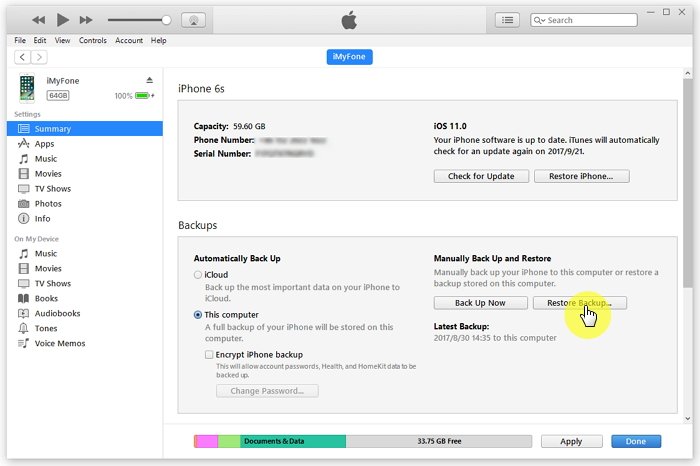
Ensure to install the latest version of iTunes on your computer and launch it. Connect your iPhone using a lightning cable and make sure to tap on 'Trust' when 'Trust This Computer' message appears on your screen. Now, click on your iPhone from the iTunes' main screen.


Go to the 'Summary' tab and under the 'Backups' section click on 'Restore Backup' button. Select the most recent or any desired backup file from the list in the pop-up window and tap 'Restore'.


Note: Please do not disconnect the iDevice until the process completes.


Gihosoft Free iPhone Data Recovery is a professional iPhone Data Recovery software to get back all your lost text message, photo, video, call history, note, contact and more from iPhone/iPad/iPod Touch.

Saturday, 14 July 2018

How to Factory Reset iPhone 7 2018 update


Remember: this removes EVERYTHING from your phone and resets it back to factory settings. If you’re sure you wish to proceed with this, follow the simple steps below. If you just want to reset a frozen device, hold “Volume Down” and “Power” for 15 seconds. That should reboot it.
Reset From Device


Click on “Settings” and then on “General.”


Scroll to the bottom of the General tab and click “Reset.”


Tap “Erase all Content and Settings.”


Enter your passcode (if you have set one) and confirm your reset by tapping “Erase iPhone.”


Your device should give you an estimate as to how long this process will take. Depending on how many apps you have, it could be anywhere from a few moments to an hour or more. During this time, the device is completely inoperable. Once finished, your phone will be like new. This is something you should do if you ever give or sell your phone to someone else as it erases all of your information.
Reset From iTunes


You may wish to simply restore using a backup of your device so that you can keep your settings, email and apps. This process involves a few more steps, but it’s still fairly simple.


Connect your iPhone to your computer with its cable and allow iTunes to launch. You’ll see a button appear for your phone under “Devices” on the upper-left side of your screen. This lets you know the phone is properly connected and recognized. Select the button.


If iTunes is set to automatically sync when the device is connected, it will start transferring data right away. This is a very important step so that all newly-added content will be saved, including any songs or apps you’ve purchased and photos you’ve saved. If iTunes does not automatically begin to sync, do so manually now. Press the “Sync” button at the bottom-right corner of the “Summary” option located in the left pane in iTunes.


Once the sync has completed, head back to the information page within iTunes. In the middle of the main window, you’ll see two buttons. Click on the “Restore” button. Once you have done so, iTunes will warn you that restoring your iPhone to factory settings will erase all media and data. If you’ve already successfully synced, simply click the “Restore” button again to begin the process.


As soon as you click the “Restore” button the second time, iTunes will automatically start the process. You’ll see several different message on the screen where iTunes tells you things – such as that it is extracting the software needed to restore your device. You’ll see things such as a message that it’s being verified with Apple, as well. Do NOT disconnect your phone from your computer while this process is going.


iTunes will tell you when the phone is finished being restored, but you aren’t done quite yet! You have to restore your settings and sync everything back to the device. Let the iPhone restart itself after restoration. You may then see a message saying it needs to activate – just wait a moment and it will then tell you that process is finished.


On the iTunes screen, you’ll see two options: “Set Up as a New iPhone” or “Restore From a Backup“. If you wish to restore your settings, email, contacts and other information, you’ll of course choose the “Restore From a Backup” option. Select the name of your iPhone from the drop-down menu on the right side of the screen.Once you click the button, iTunes will restore all settings and files you backed up earlier in this process. It will likely take several minutes – make sure you don’t disconnect the phone during this time. As soon as everything is restored to the iPhone it will restart itself once again. If iTunes is not set to automatically sync, please do so again now manually. This step is critical: it is when all of your files, apps, music and such will be transferred back to the iPhone.If you accidentally deleted or lost videos on iPhone, first please check on the Recently Deleted folder. Alternatively, you can use the professional tool Gihosoft iPhone Recovery to recover deleted iPhone videos from Camera Roll or some apps.


Download iOS 13.1.3 and iPadOS 13.1.3 for iPhone and iPad

Apple has released iOS 13.1.3 and iPadOS 13.1.3. The previous iOS and iPadOS versions were released last month. The iOS 13.1.3 and iPadOS 13...